Installing SimpleData on WordPress
Track pageviews and WooCommerce revenue automatically
📦 Download Plugin
Official WordPress plugin for SimpleData Analytics
Step 1: Get Your Site ID & Heartbeat Secret
- Log in to SimpleData Dashboard
- Go to Sites and create a new site
- If you have WooCommerce, set Site Type to Ecommerce
- Click on "Get Code" to open the installation modal
- Copy your Site ID and Heartbeat Secret (both are required for WordPress)
Step 2: Install the Plugin
Option A: Upload Plugin File
- Download the SimpleData Analytics plugin
- In WordPress admin, go to Plugins → Add New
- Click Upload Plugin
- Choose the downloaded .zip file
- Click Install Now
- Click Activate
Option B: Install from WordPress.org (Coming Soon)
Once approved, you'll be able to search for "SimpleData Analytics" directly in the WordPress plugin directory.
Step 3: Configure the Plugin
- In WordPress admin, open SimpleData → Settings in the left-hand menu
- Paste your Site ID in the "Site ID" field
- Paste your Heartbeat Secret in the "Heartbeat Secret" field
- Click Save settings, then Test connection: the status should read "Connected"
Before version 1.1.0 the settings lived under Settings → SimpleData Analytics. That address still works and takes you to the new page.
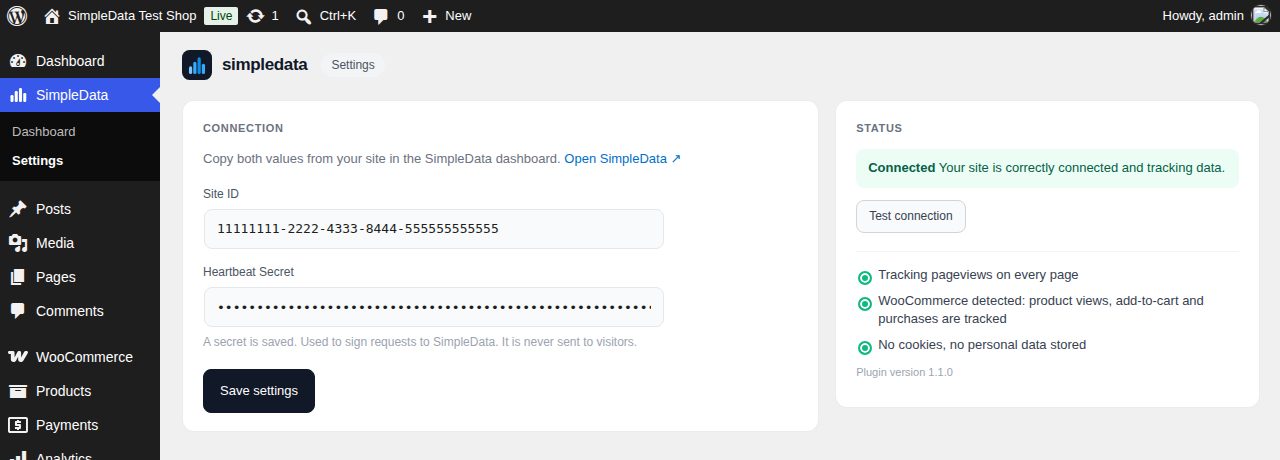
✅ Done! Pageviews are tracked on every page and, with WooCommerce, product views, add-to-cart and purchases too.
Your own visits are not counted: since version 1.1.4, the visits of logged-in administrators, editors and shop managers are left out. Their orders still count unless you tick "Do not count their orders", which leaves out any order they place, real ones included. Both are in SimpleData → Settings → "Your own visits"; for test orders, exclude your IP instead. More in Exclude your own visits →
Step 4: Your Statistics Inside WordPress
Since version 1.1.0 you don't need to leave WordPress to see how your site is doing. Open SimpleData → Dashboard in the admin menu:
- Visitors right now, refreshed every minute
- Visitors and pageviews against the previous period, with a chart
- Bounce rate and visit duration
- Top pages, channels and countries
- Revenue, orders and conversion rate if you use WooCommerce
- Today, the last 7 days or the last 30 days
- Hours and days on your site's clock, the time zone set for the site in SimpleData
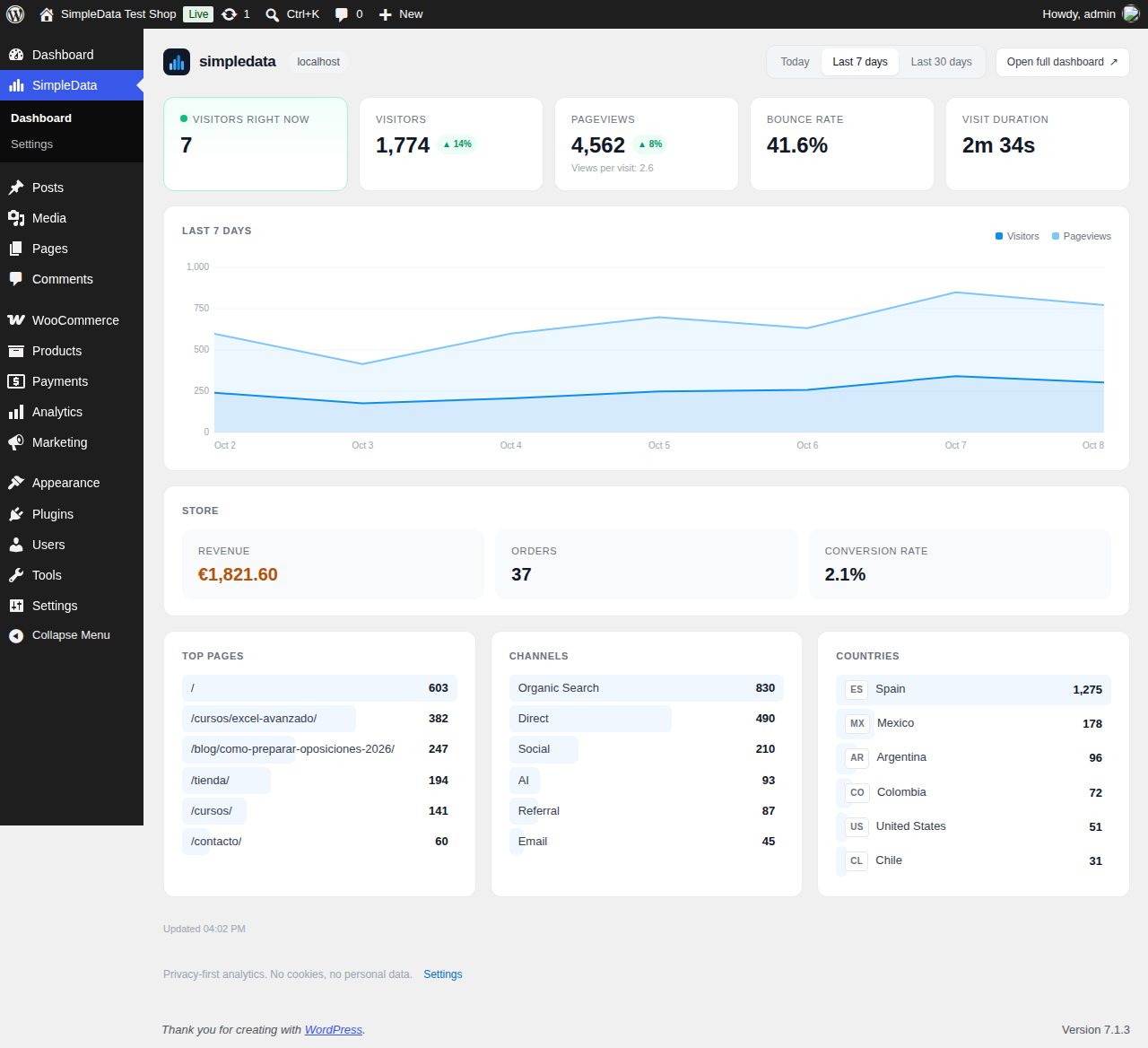
There is also a "SimpleData — today" widget on the WordPress Dashboard home screen.
For filters, funnels, AI traffic and reports, click "Open full dashboard" to come here.
Without WooCommerce, the Store block appears blurred with a button to install it. The figures behind the blur are an example, not your data.
🔒 Only administrators see the statistics. WordPress requests them from your server with a signed request; the Heartbeat Secret never reaches the browser.
Step 5: WooCommerce Integration (Automatic)
If you have WooCommerce installed, the plugin will automatically:
- ✅ Detect WooCommerce
- ✅ Track product views and add-to-cart, from the product page, the shop grid and the block cart
- ✅ Track completed orders, once each, with revenue, products and currency
- ✅ Keep your SimpleData currency in step with your store's
📝 No additional configuration needed! Purchases are recorded on the order confirmation page. If the buyer never gets there — they paid through a gateway that redirects (Redsys, Bizum, PayPal) and closed the window, or a blocker stopped the tracker — your server sends the paid order 15 minutes later. Each order counts once.
Step 6: Verify Installation
Test Pageview Tracking
- Visit your WordPress site in a new incognito/private window
- Navigate to a few pages
- Open SimpleData → Dashboard in WordPress, or your SimpleData dashboard
- Check that "Visitors right now" and the pageviews include your visit (may take 1-2 minutes)
Test WooCommerce Tracking
- Place a test order on your WooCommerce store. Logged in as an administrator, editor or shop manager, it arrives 15 minutes later (the tracker is not loaded for you), or not at all if you ticked "Do not count their orders"; in a private window, it arrives at once
- Complete the checkout process
- Wait 2-3 minutes
- Check your SimpleData dashboard for revenue, orders, and products
Updating the plugin
- The plugin updates from the WordPress Plugins screen, like any other. From version 1.1.4 you can also turn on "Enable auto-updates" for it, and WordPress installs new versions on its own.
- A site on 1.1.3 sees 1.1.4 offered but has to click "Update now" once: that version could not update in the background. On 1.1.2 or earlier, download the ZIP above and upload it once.
- Every update is checked before WordPress installs it: the plugin accepts it only if its details are signed by SimpleData and the downloaded ZIP is exactly the one signed.
- A new version can take up to 24 hours to appear: the plugin checks once a day.
Troubleshooting
Pageviews not showing
- •Check Site ID: Ensure it's entered correctly in SimpleData → Settings
- •Check domain: Your WordPress domain must match the domain registered in SimpleData
- •Clear cache: If using a caching plugin (WP Super Cache, W3 Total Cache), clear the cache
- •Check browser console: Open DevTools (F12) and look for JavaScript errors
- •Logged in: Your visits are not counted while you are logged in as an administrator, editor or shop manager (SimpleData → Settings → "Your own visits"). Test in a private window
WooCommerce orders not tracking
- •Plugin activated: Ensure the SimpleData plugin is activated
- •WooCommerce active: WooCommerce must be installed and activated
- •Test order: Complete a real test order (not just add to cart)
- •Unpaid orders: The server does not send an order left pending or failed; only processing, completed or on-hold orders
- •Wait time: Usually 2-3 minutes; up to 15 if the buyer did not come back to the order page
- •Placed while logged in: With "Do not count their orders" ticked, orders by logged-in administrators, editors and shop managers are left out on purpose, and the order has a note from SimpleData saying so. Untick it if those are real sales
The dashboard in WordPress shows an error
- •Credentials not accepted: The Heartbeat Secret in SimpleData → Settings must be the one shown for this site in SimpleData
- •Could not reach SimpleData: Your hosting must allow WordPress to make outgoing HTTPS requests to api.simpledata.dev
- •Store block blurred: WooCommerce is not active on this site. Activate it and the block shows your sales
Advanced: Manual Installation (Without Plugin)
If you prefer not to use the plugin, you can install the tracker manually:
1. Add Tracker Script
Add this to your theme's header.php before </head>:
<!-- SimpleData Analytics -->
<script async src="https://api.simpledata.dev/t.js"
  data-site-id="YOUR_SITE_ID"></script>
2. Track WooCommerce Purchases (Optional)
Add this to your theme's functions.php:
add_action('woocommerce_thankyou', 'simpledata_track_purchase');

function simpledata_track_purchase($order_id) {
    if (!$order_id) return;

    $order = wc_get_order($order_id);
    if (!$order) return;

    $products = [];
    foreach ($order->get_items() as $item) {
        $products[] = [
            'id' => $item->get_product_id(),
            'name' => $item->get_name(),
            'quantity' => $item->get_quantity(),
            // Unit price: get_total() is the line total, quantity included.
            'price' => floatval($item->get_total()) / max(1, $item->get_quantity()),
        ];
    }
    ?>
    <script>
    (function() {
        var checkTracker = setInterval(function() {
            if (window.simpleAnalytics && window.simpleAnalytics.trackPurchase) {
                clearInterval(checkTracker);
                window.simpleAnalytics.trackPurchase({
                    revenue: <?php echo floatval($order->get_total()); ?>,
                    currency: '<?php echo esc_js($order->get_currency()); ?>',
                    orderId: '<?php echo esc_js($order->get_order_number()); ?>',
                    products: <?php echo json_encode($products); ?>
                });
            }
        }, 100);
        setTimeout(function() { clearInterval(checkTracker); }, 5000);
    })();
    </script>
    <?php
}